
Copy configurations
View and manage your copied Control Center feature configurations. With the copy configurations feature, you can:
- Reuse existing configurations across Control Center environments, removing the need to recreate them manually
- Monitor the progress and outcome of your imports and exports
- View the history of imported and exported configurations across your organization
- Troubleshoot failed imports and exports through dedicated details screens
Copy configurations supports the following features:
From Control Center, you can do the following:
View copied configurations
To view the list of copied configurations and explore an entry in more detail, do the following:
- From the main menu, select Configurations > Copy configurations.
- On the Copy configurations screen, select an entry. Use the filter options to refine the list.
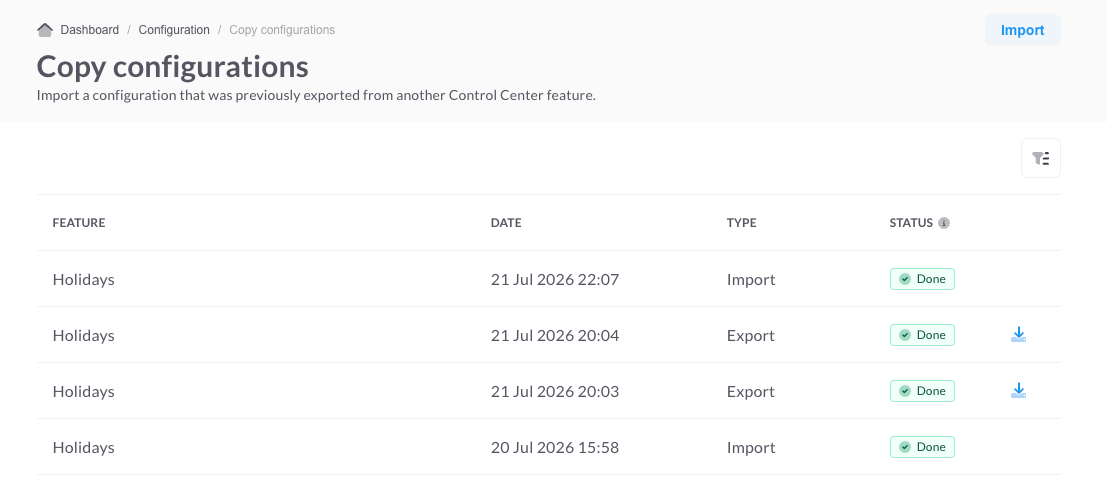
The Copy configurations screen displays the list of copied configurations for the Control Center environment. Each entry represents a configuration imported to or exported from the environment.
Successfully exported configurations include a download icon, which you can select to download a JSON file of the configuration. For more information, refer to Download a configuration.
Exporting a configurationYou cannot export a configuration from the Copy configurations screen. To export a configuration, you must go to the specific feature menu.
A configuration can have one of the following statuses:
- Processing—The file import or export is in progress.
- Done—The file import or export completed successfully.
- Failed—The file import or export failed.
- Expired (export only)—The download link for the exported file expired. For more information, refer to Download a configuration.
The following sections describe the Import details and Export details screens in more detail.
Import details screen
The Import details screen displays information about the import. You can view the import progress of individual configuration components and review the number of existing and new records for each component.
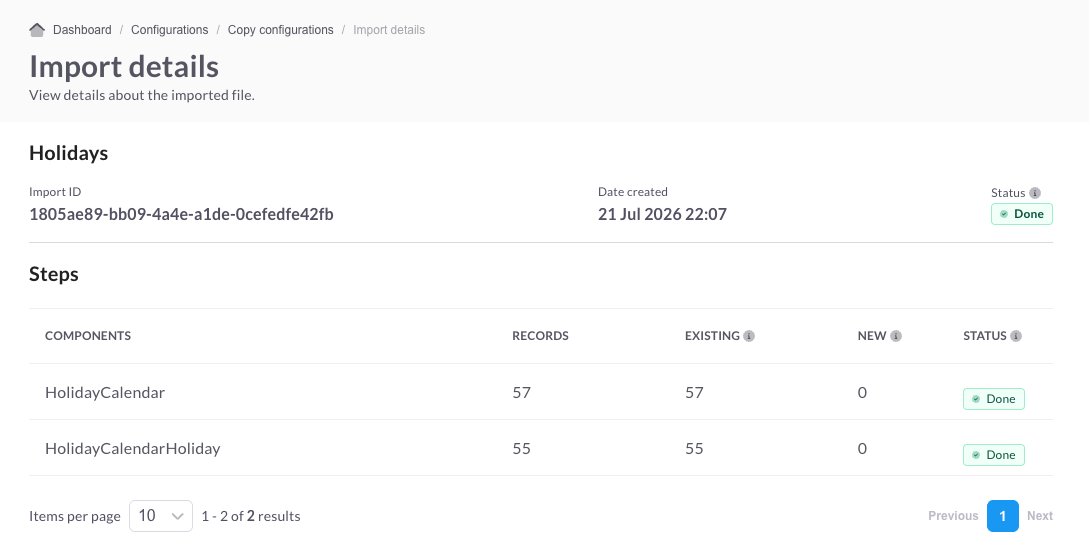
The Steps section divides the import into individual configuration components, giving you a detailed breakdown of each stage of the import process.
All components must import successfully for the overall import to succeed. If even a single component fails, Control Center stops the entire import process. In the event of a failed import, you can review the outcome of individual steps to identify the affected component and troubleshoot the issue.
For more information about the Steps section, refer to the following table.
| Column | Description |
|---|---|
| COMPONENTS | A grouping of related configuration data |
| RECORDS | The number of data elements contained in the component |
| EXISTING | The number of records that already exist in the target environment. This data is not imported. |
| NEW | The number of records that do not exist in the target environment. This data is imported as part of the configuration. |
| STATUS | The import status of the component
|
Understanding existing and new records
The EXISTING and NEW columns help you understand how the imported configuration relates to the data already present in the target environment.
For example, if a holiday configuration contains records for Christmas Day and New Year's Day, but the target environment already includes the Christmas Day record:
- EXISTING displays 1
- NEW displays 1
During the import, only the New Year's Day record is imported.
Export details screen
The Export details screen displays information about the export. You can view the export progress of individual configuration components and download completed exports.
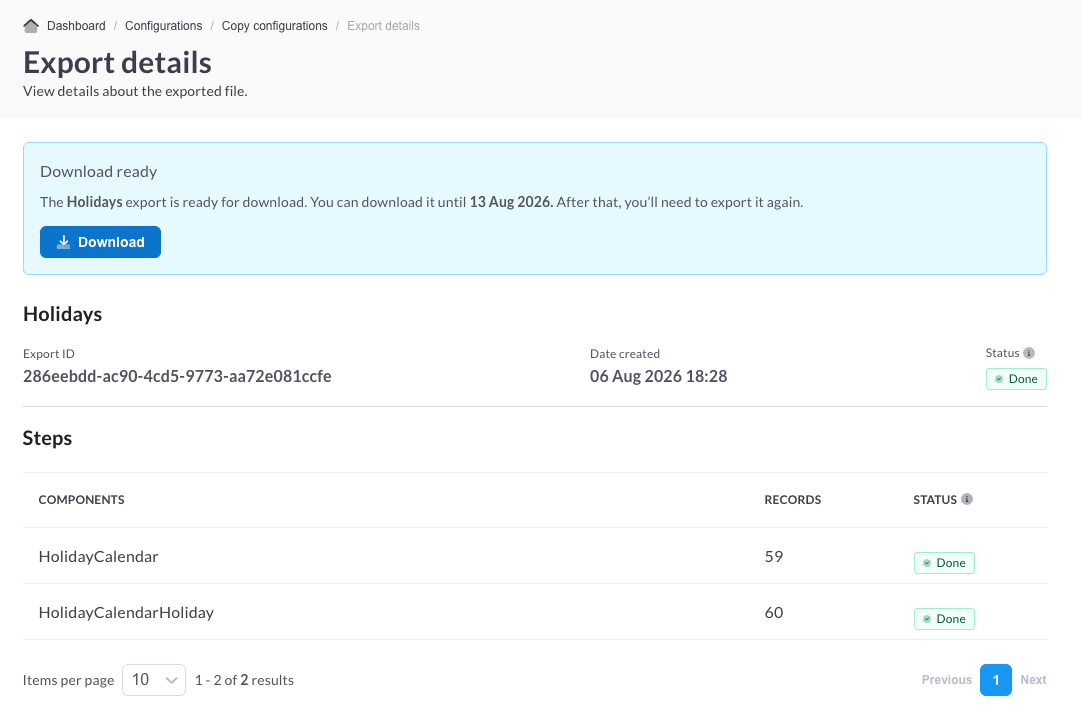
The Steps section divides the export into individual configuration components, giving you a detailed breakdown of each stage of the export process.
All components must export successfully for the overall export to succeed. If even a single component fails, Control Center stops the entire export process. In the event of a failed export, you can review the outcome of individual steps to identify the affected component and troubleshoot the issue.
For more information about the Steps section, refer to the following table.
| Column | Description |
|---|---|
| COMPONENTS | A grouping of related configuration data |
| RECORDS | The number of data elements contained in the component |
| STATUS | The export status of the component
|
Download a configuration
Download a JSON file of your exported configuration to save it for offline storage and future use.
Before downloading a configuration, note the following:
- The option to download is available only when the configuration export status is Done.
- You have 7 days to download the file. After that, you'll need to export the configuration again.
To download an exported configuration, on the Copy configurations screen, select the download icon for the configuration you want to download. You can also download the configuration from the Export details screen.
Import a configuration
Import a previously exported configuration to reuse it across your Control Center environments. Import a configuration to:
- Promote a sandbox configuration to a live production environment
- Maintain consistency across selected environments
- Restore an earlier version of a configuration
Editing configuration files outside of Control CenterDo not edit configuration files outside of Control Center.
Control Center validates the structure and integrity of configuration files during the import process. If you try to import an altered file, the import fails.
To import a configuration, from the Copy configurations screen, select Import and upload your configuration file. Imported configurations are automatically added to their respective feature menu. For example, if you import a holiday configuration, it's added as an entry to the Holidays configuration menu.
Updated 3 months ago