
Pix Automatic
The Central Bank of Brazil (BACEN) created Pix Automatic - a Pix (Brazilian instant payment system) feature that allows for scheduled and automatic recurring transfers. Customers that make recurring payments, such as subscriptions, school fees, rent, and more, will find this feature useful.
With Pix Automatic, you can define a specific amount and frequency (daily, weekly, monthly, and so on.) so that the transfer is automatically executed on a scheduled date without the need for a manual transaction. This automation facilitates financial management and payment punctuality.
PIX Automatic is expected to replace many use cases that boletos and traditional direct debit systems currently handle, making the payments landscape in Brazil more efficient, user-friendly, and digital-native.
Pismo provides a full set of API endpoints to implement this feature.
Key features
- Automatic and recurring payments—Allows users to authorize merchants or service providers to automatically charge them on a scheduled basis—perfect for things like subscriptions, utility bills, or loan repayments.
- Pre-authorization—Payer gives one-time consent for future payments. After that, the merchant can initiate charges at agreed-upon intervals.
- Real-time settlement—Just like regular Pix, funds move instantly—except now it happens without manual approval each time.
- 24/7 availability—Payments can be processed anytime, even on weekends and holidays.
- Security and transparency—All charges are clearly displayed to the user, with options to review, cancel authorization, or limit payment amounts/frequency.
Benefits
- For consumers—No missed payments, more control than traditional direct debits.
- For businesses—Predictable cash flow, lower transaction costs than cards, reduced churn.
- For banks/fintechs—New revenue models via value-added services and better customer engagement.
Scheduled transfers versus Pix Automatic
| Payment type | Nature | Amount | Common uses | Participants | |
|---|---|---|---|---|---|
| Scheduled transfers | Payer initiates recurring scheduled Pix (push payment) | Automatic recurrence created based on the payer's instructions | Fixed | General Pix payments | Either a natural person (individual) or a legal person (corporation or organization) can initiate |
| Pix Automatic | Payee initiates Automatic Pix after obtaining payer authorization (pull payment). | Automatic recurring transfer based on prior authorization from the payer, with payee payment instructions | Fixed or variable | Purchases or business transactions | Legal person (corporation or organization) can initiate |
Pix Automatic use cases (journeys)
The following uses cases are referred to as journeys in the official Pix Automatic documentation.
| Journey | Use case | Description | Code enum |
|---|---|---|---|
| 1 | Pix Automatic request via API | Bank notification. If the merchant has the payer's banking information, a push notification can be sent directly to the payer's bank app, prompting them to authorize the recurring payment. | AUT1 |
| 2 | QR Code for recurring payment authorization | Authorization via QR code. Payer scans a merchant provided QR code to authorize recurring payments. This method does not initiate an immediate payment, allowing the first payment to be scheduled for a later date. | AUT2 |
| 3 | QR Code for recurring payment authorization with first payment | Authorization via QR code with first payment. Similar to the second method, but the QR code includes information for both the authorization and the initial payment, enabling the payer to authorize the recurring payment and make the first payment in a single step. | AUT3 |
| 4 | QR Code for immediate payment with sign-up option | Post-payment sign-up path. After completing a one-time payment via QR code, the payer is offered the option to authorize recurring payments for future transactions. This involves a composite QR Code (one location for payment + one location for subscription authorization). | AUT4 |
Journey flows
Journey one flow
Journey one is a direct API Request using authorization_id. The receiver exclusively initiates this journey via API that sends a recurrence request to the Payer. It is identified by authorization_id and recurrence_id.
Step 1—Payee initiates recurrence request
Payee initiates recurrence request via Create recurrence (POST /v1/pix/automatic).
Payee events generated:
- Pix recurrence status changed,
status=CREATED. - Pix recurrence authorization status changed,
status=CREATED
Step 2—Payer receives request
Payer events generated:
- Pix recurrence status changed,
status=CREATED. - Pix recurrence authorization status changed,
status=CREATED
Step 3—Payer acknowledges the recurrence request (it's automatically done by Pismo )
Payer events generated:
- Pix recurrence authorization status changed,
status=RECEIVED
Payee events generated:
- Pix recurrence authorization status changed,
status=RECEIVED
Step 4— Pismo notification
A notification must be delivered for the paying user asking for confirmation or rejection of the
recurrence—Pix recurrence authorization status changed, status= RECEIVED
if the payer does not answer until the expiration date the recurrence request will
automatically expired.
Payer generated event:
- Pix recurrence authorization status changed,
status=EXPIRED
Payee generated event:
- Pix recurrence authorization status changed,
status=EXPIRED
Step 5 —Payer confirms or rejects recurrence
Payer confirms or rejects recurrence— Accept/reject recurrence authorization (POST /v1/pix/automatic/payer/authorization).
Payer generated events:
- Pix recurrence status changed,
status=ACCEPTEDorREJECTED - Pix recurrence authorization status changed,
status=ACCEPTEDorREJECTED
Payee generated events:
- Pix recurrence status changed,
status=ACCEPTEDorREJECTED - Pix recurrence authorization status changed,
status=ACCEPTEDorREJECTED
Step 6—Payee receive payer’s confirmation
Payee generated events:
- Pix recurrence status changed,
status=APPROVED
Payer generated events:
- Pix recurrence status changed,
status=APPROVED
Journey two flow
Journey 2 – QR Code with COBR (no prior payment). The Receiver generates a QR Code containing only a COBR location. The Payer reads the QR Code and accepts the recurrence. No payment is required upfront.
Step 1—Receiver generates recurrence
Payer accepts recurrence with QR Code Create recurrent COB QR Code(POST
/qrcode/v1/pix/qrcode/recurrence).
Step 2—Payer reads the QR Code
Payer reads the QR code Validate QR Code(POST /pix/v1/pix/qrcode/validate).
Step 3—Pismo creates recurrence for the payer
Pismo creates recurrence for the payer (status = WAITING_DEFINITION).
Step 4—Payer accepts recurrence
Payer accepts recurrence via Accept/reject recurrence authorization (POST /v1/pix/automatic/payer/authorization)
Journey three flow
Journey 3 – QR Code with COB + COBR (mandatory payment). The Receiver generates a QR Code with two locations:
- COB (immediate payment)
- COBR (recurrence proposal)
The Payer must successfully complete the COB payment to activate the COBR recurrence. If either location is invalid, the process fails.
Step 1—Receiver generates recurrence with composite QR Code
Receiver generates recurrence with composite QR Code—Create recurrent COB QR Code (POST /qrcode/v1/pix/qrcode/cob/recurrence).
Step 2—Payer reads the QR Code
Payer reads the QR Code—Validate QR Code (POST /pix/v1/pix/qrcode/validate).
Step 3—Payer executes immediate payment
Payer executes immediate payment—Pix-out transfer (POST /pix/v1/pix/out/transfer).
Step 4—Pismo receives payment confirmation
Pismo receives payment confirmation—Pix-out notification received
Step 5—Payer accepts the recurrence
Payer accepts the recurrence via Accept/reject recurrence authorization POST /v1/pix/automatic/payer/authorization
Journey four flow
Journey 4 – Offer after payment (COBV or static). The Receiver generates a QR Code containing either a COBV (charge without due date) or a static charge + COBR. The Payer reads the QR Code and may accept the recurrence after completing or scheduling the payment.
Step 1—Receiver creates recurrence with charge
Receiver creates recurrence with charge (COBV or Static).
Step 2—Payer reads the QR Code
Payer reads the QR Code—Validate QR Code (POST /pix/v1/pix/qrcode/validate).
Step 3—Payer completes or schedules payment
Payer completes or schedules payment—Schedule transfer (POST /pix/v1/pix/out/transfer or /pix/v2/pix/out/scheduler).
Step 4—Payer accepts the recurrence
Payer accepts the recurrence via Accept/reject recurrence authorization( POST /v1/pix/automatic/payer/authorization)
Pix Automatic transaction flow
The following is a simplified flow for a typical Pix Automatic transaction.
Step 1 - Merchant sends payment recurrence request
The merchant (e.g., gym, streaming service) initiates a recurring payment request to the customer’s bank.
Request includes the following:
- Payer identification and data
- Receiver Identification and data
- Payment amount
- Frequency (daily, weekly, monthly, and so on)
- Automatic transactions start date and, if necessary, end date.
Step 2 - Customer receives authorization request
The customer is notified via their banking app to authorize the recurring payment.
Step 3 - Customer authorizes payment
Upon reviewing the details, the customer approves the recurring payment agreement.
Step 4 - Recurring payments executed automatically
On the agreed dates, payments are automatically debited from the customer’s account and credited to the merchant, without further action needed from the customer.
Step 5 - Notifications sent
Both the customer and merchant receive confirmations for each successful transaction.
Recurrence value types
Pix Automatic supports two billing configurations for recurrences types: fixed amount and variable amount. The receiver defines the type at recurrence creation time using the dynamic_amount parameter.
Fixed amount
dynamic_amount=false- The Receiver must specify the exact recurrence value using the
amountfield. Theamountvalue is used for recurrences
Variable amount
dynamic_amount=true- The Receiver must define a
min_payment_amount(minimum amount per charge). - The Payer, during recurrence acceptance, just define a
max_payment_amopunt(minimum amount they are willing to pay per change). - If the payer does not specify a maximum amount, then there is no upper limit for accepting payment orders.
Updating recurrence values
To update a recurrence's minimum and maximum values, call the Update automatic recurrence (PATCH /v1/pix/automatic/{recurrence_id}) endpoint.
Notes:
- The Receiver can update the minimum amount (
min_payment_amount) only before the recurrence is accepted. - The Payer can update the maximum amount )
max_payment_amount) at anytime, even after acceptance.
Payment order workflow
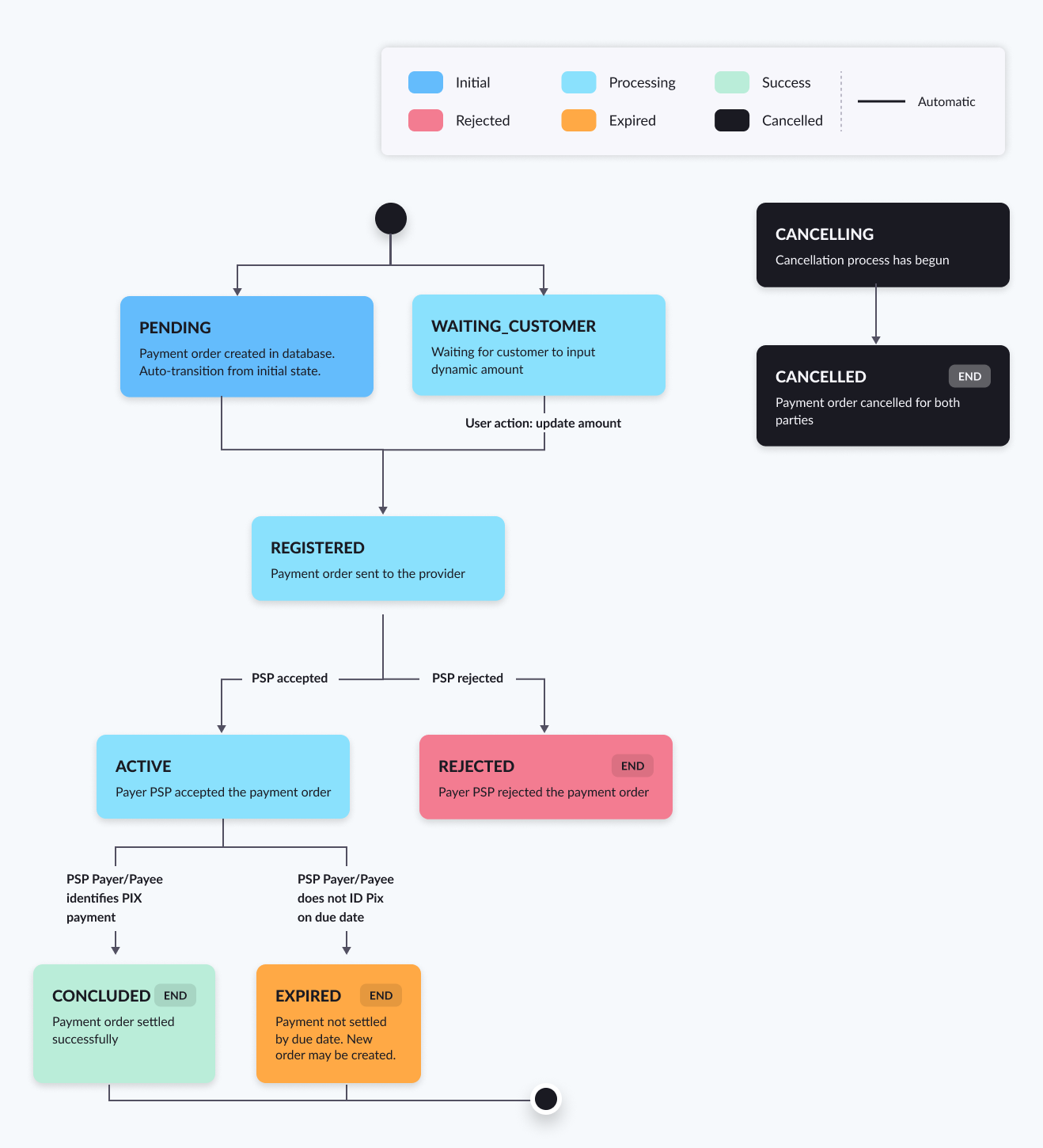
Payment order process:
- Receiver’s payment service provider (PSP) sends payment instructions to the payer’s PSP.
- Between 10 and 2 days before the due date, the payer receives this order and performs validations.
- Once accepted, the payment is scheduled for execution on the due date.
The payer's authorization is required in the recurring with authorization flow. Once authorized, the recurrence automatically generate payment orders.
There are two distinct flows for payment orders: Payer and Receiver.
Receiver flow
In the Receiver flow, behavior depends on the recurrence value type:
- Fixed value—The payment order is generated and sent immediately. This generates a Pix recurrence payment order status changed event.
- Variable value
- Pismo generates the payment order and sends it to the receiver client, who must then pass the actual payment amount using the Update payment order amount endpoint. This generates a Pix recurrence payment order status changed event with
status=WAITING_CUSTOMER. - Pismo waits for the receiver to send the amount via Update payment order amount.
- Pismo generates the payment order and sends it to the receiver client, who must then pass the actual payment amount using the Update payment order amount endpoint. This generates a Pix recurrence payment order status changed event with
Payer flow
In the Payer flow, when Pismo receives the payment order, it performs validations to determine whether to:
- Accept the order and schedule the payment execution, or
- Reject the instruction and notify the receiver’s PSP.
Rejection conditions and error codes
Rejection conditions
- Authorizations expired or does not exist
- Authorization was cancelled
- Fixed amount mismatch
- Variable amount exceeds maximum
- Duplicate charge for same cycle
- Receiver mismatch
- Instruction outside scheduling window (2-10 days before due date)
Error codes for instruction validation
- AC06 - Payer's transactional account blocked
- AM02 - Charge amount exceeds authorized maximum
- AM09 - Charge amount does not match recurrence
- DENC - Payer CPF/CNPJ mismatch
- DTED - Due date conflicts with recurrence rules
- DTNT - Post-due attempts exceed D+8
- FBRD - Pain.013 received outside business window
- IRNT - Recurrence does not allow post-due retries
- MIDI - Invalid or nonexistent recurrence ID
- MSUC - Recurrence not confirmed by payer
- NIEC - Duplicate payment order already pending
- NIPA - Payment already completed
- NITX - Instruction does not match previous charge
- QUNT - More than 3 retries in 7 days after due date
- UDEI - Invalid payer CPF/CNPJ
Acceptance and scheduling
Once accepted, Pismo schedules for payment and generates a Pix recurrence payment order status changed event with status = ACTIVE or REJECTED. The Receiver's PSP also receives this event.
Recurrence cancellation
Both the Payer and Receiver can cancel a recurrence via the Cancel recurrence (POST /v1/pix/automatic/cancel) endpoint. This endpoint generates a Pix recurrence payment order status changed event with status = CANCELLED and includes the cancellation reason (reasonobject) .
Payer-side behavior
- Pismo checks for active scheduled payments linked to the recurrence
- If a payment is scheduled for a future date (
due_dategreater than today), it is automatically cancelled - If a payment is scheduled for today (
due_date= today), it executes normally
Receiver-side behavior
- Pismo automatically cancels all future payment orders
- Payment orders scheduled for today are still executed
Payment order execution and retry
Due data execution
On the due date, Pismo attempts payment between 00:00 and 08:00 (Brasilia time). If successful the payer's PSP receives the Pix recurrence payment order status changed event with status = CONCLUDED and a Pix-out configuration.
Failure handling
If failure occurs before reaching the provider (i.e., insufficient funds)
- Pismo retries between 18:00 and 21:00
- No further attempts after 21:00
If failure occurs before reaching the provider (i.e., SPI (Brazil instant payment system) rejects reused end_to_end_ID)
- Pismo cancels the order and generates the Pix recurrence payment order status changed event with
status=CANCELLED - To proceed with a new payment attempt, Pismo generates, for the Receiver's PSP, a new payment instruction using a new
end_to_end_ID, since the SPI does not allow previously submitted identifier reuse.
Retry flows
Post-due retry (RETRY_OVERDUE, SPI code NTAG)
- Triggered if payment not complete by 21:00
- Pismo checks retry eligibility and generates new order for D+2
Intra-day retry (RETRY_FAILUER, SPI code: RFIL)
- Triggered when Receiver's PSP gets cancellation with reason
FAIL - New order is generated for same settlement day
Payment order cancellation
Payment orders can be cancelled in two ways:
- Pismo automatically cancels due to recurrence cancellation
- Payer or Receiver manually cancels via the Cancel payment order (POST /v1/pix/automatic/payment/order/cancel) endpoint. This generates the Pix recurrence payment order status changed event with
status=CANCELLING. After the counterparty confims the cancellation, the same event is generated withstatus=CANCELLED.
Note: Payment order cancellations are only allowed up to 24 hours before the due date.
Special case: Reason fail
If the cancellation reason is FAIL, Pismo may initiate an intra-day payment order retry within the Receiver-side flow using a new end_to_end_IDand a RETRY_FAILURE retry type.
Pix Automatic receiver process for use case #1
Step 1 - Recurrence creation
Receiver configures the details for the recurrence they wish to establish in their system:
- Payer identification and data
- Receiver Identification and data
- Payment amount
- Frequency (daily, weekly, monthly, etc.)
- Automatic transactions start date and, if necessary, end date
Step 2 - Sending the recurrence request
- Receiver calls the financial institution's API endpoint to send the recurrence request. The request includes all the details configured in the receiver's system.
- Financial institution validates the recurrence data.
Step 3 - Acknowledgment and validation
- Financial institution validates the recurrence request data.
- After validation, the financial institution responds with an acknowledgment to the receiver, confirming that the message has been received.
- Payer updates the recurrence status to "Awaiting Approval" or "Rejection".
Step 4 - Payer notification
- Financial institution sends a notification to the payer via a webhook with the details of the recurrence request.
- Payer receives the notification (via banking app, SMS, etc.) and reviews the request details.
Step 5 - Payer authorization
- Payer authorizes or rejects the recurrence (Link to Authorization endpoint).
- Financial institution updates the recurrence status based on the payer's action.
- Via event streams, the receiver sees status changes notifications
Step 6 - Payment Instruction sent
Between 10 to 2 days before the due date, the receiver's financial institution sends a payment instruction to the payer's institution, confirming the scheduled transfer's details.
Step 7 - Payer validates payment Instruction
- Payer must validate the payment instruction according to the previously given authorization data.
- If the payment instruction does not match, the payer must reject it.
- The financial institution notifies the receiver about the validation or rejection of the payment instruction.
Step 8 - Scheduling the transactions
Based on the validated and received payment instruction, the payer's institution schedules the recurring transfers.
On the scheduled date, the financial institution's system automatically transfers the defined amount from the payer's account to the receiver's account.
Step 9 - Transaction execution
The receiver receives notifications via webhooks or API queries about the execution of transfers.
Each status change is notified to the receiver through event streams.
*/}
Updated 6 months ago