
Loan products
Create, view, and manage loan products for your organization. A loan product defines the options and rules individual loans inherit, including how often repayments are due, how interest is calculated, what limits apply, and so on. With the loan products feature, you can:
- Create loan products to launch new lending offers tailored to your business and customer needs
- Define a loan configuration once, then apply it consistently across loans, removing the need to manually configure loan terms and behavior for individual loans
For more information, refer to Loan product overview.
From Control Center, you can do the following:
View loan products
To view the list of loan products and explore a loan product in more detail, do the following:
- From the main menu, select Configurations > Loan products.
The Loan products screen is displayed.
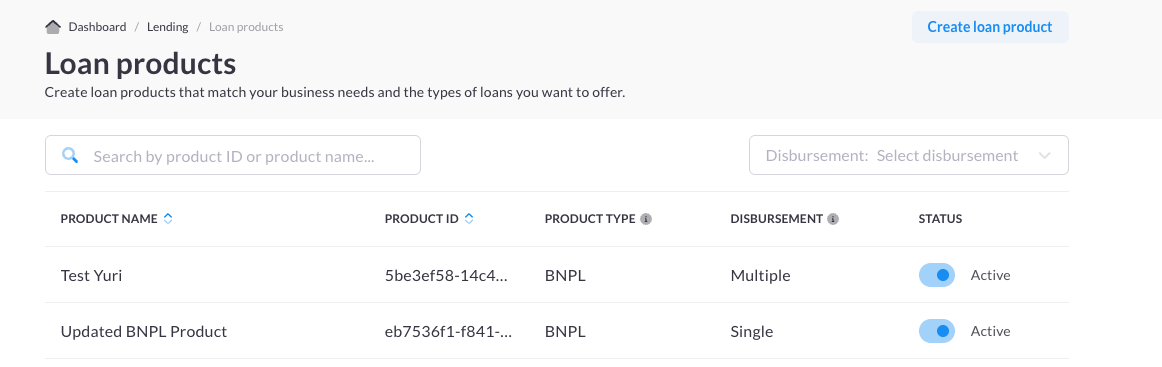
The Loan products screen lists the loan products for your organization and includes key details.
A loan product can have one of the following statuses:
- Active—The loan product is in use.
- Inactive—The loan product was deactivated and is no longer available.
- On the Loan products screen, select a loan product.
The Loan products details screen is displayed.
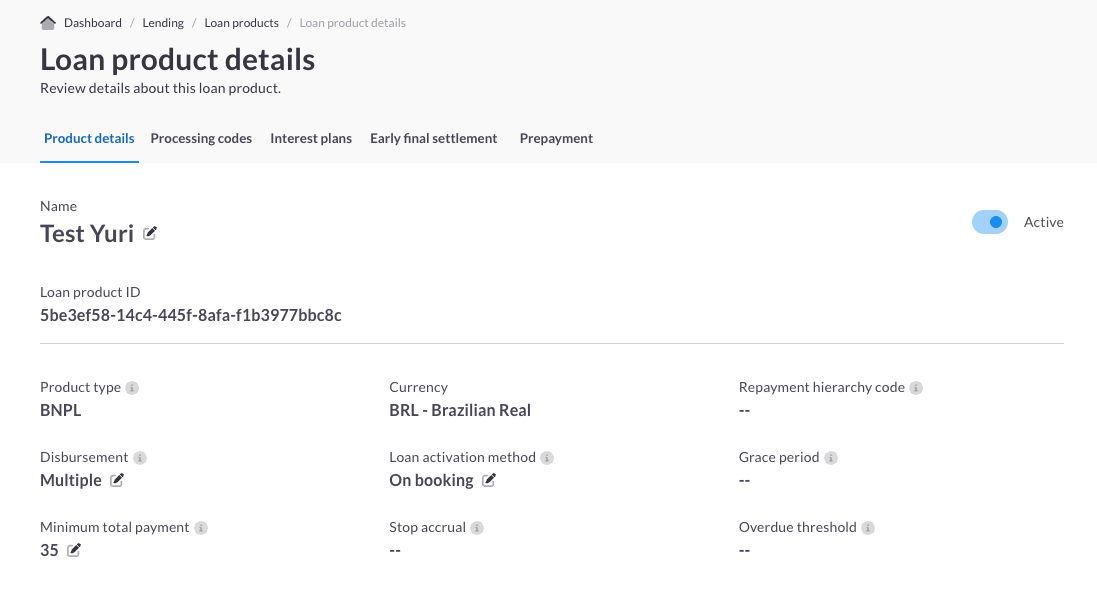
The Loan product details screen provides a detailed view of a loan product's configuration and associated settings. For more information about each tab, refer to the following table.
| Tab | Description |
|---|---|
| Product details | Provides an overview of the loan product. Wherever the edit icon appears (pencil), you can make changes. |
| Processing codes | Lists the processing codes applied to the loan product. You can add additional processing codes from this screen. For general information about processing codes, refer to Processing codes. For information about creating processing codes in Control Center, refer to Create processing codes and transaction types. |
| Interest plans | Lists the interest plans applied to the loan product. When you first create a loan product, this screen is blank. You can add interest plans from this screen. For general information about interest on the Pismo platform, refer to Interest-bearing accounts. For information about creating interest plans in Control Center, refer to Interest plans. |
| Early final settlement | Displays the early final settlement (EFS) details configured during loan product creation. EFS occurs when a borrower repays the full amount of the loan, plus any applicable charges, before the final scheduled payment date. EFS details are shown only if EFS is configured. |
| Prepayment | Displays the prepayment details configured during loan product creation. Prepayment details are shown only if prepayment is configured. |
Create a loan product
Create a loan product to define the terms, pricing, and rules that apply to the loans you offer. Because loan products act as templates, configuring at least one loan product is a required first step before you can book any individual loan. You can create multiple loan products to diversify and grow your lending portfolio, adding new products over time as your offerings expand.
Before you begin
- Before creating a loan product, you must create the processing codes you plan to use and tag them with Lending or BNPL. Each loan product requires at least one Booking processing code and one Repayment processing code. For more information about creating processing codes, refer to Create processing codes and transaction types.
- You must create your loan product in one session; you can't save and return later.
To create a loan product, do the following:
-
On the Loan products screen, select Create loan product.
Note: The creation wizard includes tooltips that provide additional guidance. Hover over the tooltip icon to learn more about a screen or understand how specific settings affect loan behavior. -
On the Product details screen, configure your loan product details, and select Next.
Note: Loan products are created at the organization level and are not tied to a specific program. Ensure the currency you select matches the currency of the programs whose accounts will have loans booked against the loan product. If your organization operates programs in more than one currency, create a separate loan product for each currency. -
On the Processing code types screen, select the processing code types to use with the loan product, and select Next.
Processing codes identify the financial operations that occur across the loan lifecycle and determine the balance impact of each operation. For more information, refer to Processing codes.In this creation wizard, processing codes are grouped by types. In this step, select the processing code types you want to use. In the next step, you'll select the specific processing codes within each type.
Notes:
- For all loan products, Booking and Repayment processing codes types are required.
- If you configured a grace period on the Product details screen, the Penalty Waiver processing code type is also required.
-
On the PC selection screen, select the processing codes to apply to the loan product, and select Next.
Note: Once you associate a Booking processing code with a loan product, you cannot use the same processing code with any other loan product. -
(Optional) On the Early final settlement screen, configure the early final settlement behavior for the loan product, and select Next.
-
(Optional) On the Prepayment screen, configure the prepayment behavior for the loan product, and select Next.
-
On the Review and create loan product screen, review your loan product details, and select Create.
Manage loan products
From Control Center, you can do the following:
Edit a loan product
Edit a loan product to keep it aligned with your organization's evolving lending requirements. You can update product details as well as manage the processing codes and interest plans associated with the product.
Note: Editing a loan product does not affect existing loans. Existing loans retain their current configuration, while loans created afterward use the updated loan product details.
To edit the loan product details, do the following:
- On the Loan products screen, select an active loan product.
- On the Product details tab, select the edit icon for the attribute you want to edit.
Note: Not all loan product details are editable. You can edit any loan product detail that displays the edit icon (pencil). - Update the value and select Save.
To add a processing code, do the following:
- On the Loan products screen, select an active loan product, and select the Processing codes tab.
- Select Add processing code, configure your processing codes, and select Add.
Note: You cannot remove processing codes.
To add an interest plan, do the following:
- On the Loan products screen, select an active loan product, and select the Interest plans tab.
- Select Add interest plan, configure your interest plans, and select Add.
Note: You can remove interest plans by selecting the trash icon.
Deactivate a loan product
Deactivate a loan product to permanently remove it from use, such as when consolidating overlapping products, replacing a product with a newer version, or retiring a lending offer. Deactivated loan products remain in the list to preserve their history.
Deactivating loan productsYou cannot delete loan products; you can only deactivate them.
When you deactivate a loan product, you can't reactive it. If you need to use it again, you must create a new loan product.
After you deactivate a loan product, existing loans previously created using the loan product are not affected.
To deactivate a loan product, on the Loan products screen, slide the Active status toggle for the loan you want to deactivate, and confirm. You can also deactivate a loan product in the same way from the Loan product details screen.
Updated about 2 months ago