
Manage loans in Control Center
View and manage your customers' loans in Control Center. With the loans feature, you can:
- View the list of created loans for an account
- Monitor loan repayment progress
- Pay out and track disbursements
- Make adjustments to individual loan repayment installments
Supported actions and role requirementsIn Control Center, you can only view, disburse, and adjust loans. You can't simulate or book a loan. To simulate or book a loan, you must use the Create simulation and Book loan endpoints.
The actions available to you in Control Center depend on your role:
- Users with the Backoffice operator or Accounts operator role can view, disburse, and adjust loans.
- Users with the Backoffice viewer, Accounts viewer, or Collection analyst role can view loans only.
For more information about lending on the Pismo platform, refer to Lending overview.
From Control Center, you can do the following:
View loans
To view the loans for an account and inspect a loan in more detail, do the following:
- From the main menu, select Customer operations > Accounts, and search for the account.
- On the account screen, select the Loans tab.
The Loan details screen is displayed. You can find specific loans by filtering the list.
Note: You can also access the Loan details screen through the Loans preview card on the Overview tab. - Select a loan.
The Loan information screen is displayed, divided into the following tabs:- Details—Provides an overview of the loan, including key financial amounts, interest rate information, and loan product details.
- Repayment schedule—Displays the repayment installment schedule for the loan. For more information, refer to Repayment schedule tab.
- Disbursement—Lists all disbursements associated with the loan. For more information, refer to Disbursement tab.
The Loan details screen displays the list of created loans for an account and includes an overview of key loan and financial details.
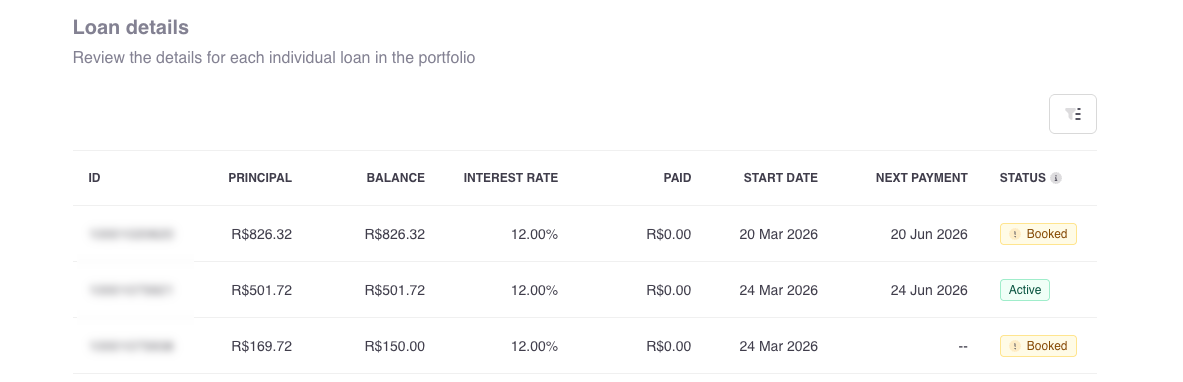
Column | Description |
|---|---|
ID | The ID of the loan The ID is generated automatically and assigned when the loan is booked |
PRINCIPAL | The original amount of the loan before interest or repayments are applied |
BALANCE | The remaining amount of the loan to be repaid |
INTEREST RATE | The percentage applied to the loan to calculate how much interest is charged over time |
PAID | The total loan amount already repaid |
START DATE | The date when the loan becomes active |
NEXT PAYMENT | The date when the next scheduled repayment is due |
STATUS | The status of the loan For more information, refer to Manage loans. |
The following sections describe the Repayment schedule and Disbursement tabs in more detail.
Repayment schedule tab
The Repayment schedule tab displays the repayment installment plan for the loan. You can view payment progress and track the status of each individual repayment.
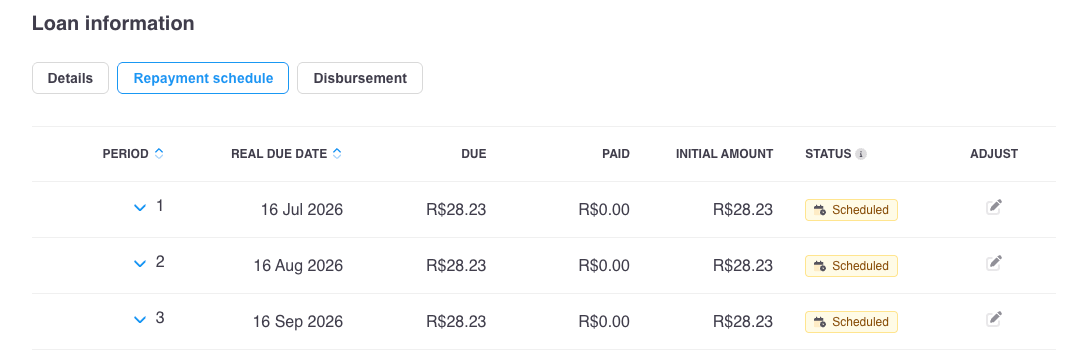
Column | Description |
|---|---|
PERIOD | The installment number in the repayment schedule |
REAL DUE DATE | The date when the repayment for the installment is due |
DUE | The remaining amount of the installment to be repaid |
PAID | The amount already repaid for the installment |
INITIAL AMOUNT | The original amount calculated for the installment |
STATUS | The status of the installment For more information, refer to Manage loans. |
ADJUST | The option to adjust the repayment details for the installment For more information, refer to Adjust a loan. |
To view more information about a specific installment, you can expand it. The expanded view shows a detailed breakdown of how the repayment is calculated.
Disbursement tab
The Disbursement tab lists all disbursements made for the loan. Each entry represents an individual disbursement and contains key information about the disbursement and its status.
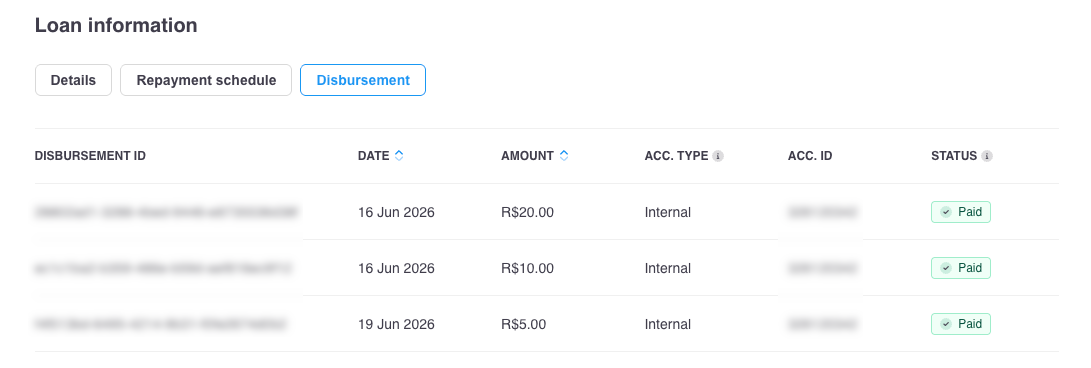
Column | Description |
|---|---|
DISBURSEMENT ID | The ID of the disbursement The disbursement ID is generated automatically and assigned when the disbursement is made |
DATE | The date when the disbursement was made |
AMOUNT | The amount disbursed |
ACC. TYPE | The type of account receiving the funds, Internal or External.
|
ACC. ID | The ID of the account receiving the disbursement Note: The account ID applies to internal accounts only. |
STATUS | The status of the disbursement For more information, refer to Manage loans. |
Manage loans
From Control Center, you can do the following:
Dual approvalIf your company is using the dual approval feature, these changes require approval. With dual approval, you initiate the change and submit a request for approval. A second person must review and approve it. The change doesn't take effect until it's been approved.
For more information about dual approval, refer to Dual approval.
Disburse a loan
Make disbursements to release funds to your customers' accounts.
Disbursement criteriaYou can only make a disbursement if you meet at least one of the following criteria:
- The loan status is Booked and the disbursement amount is less than the loan principal amount.
- The loan is configured for multiple disbursements and the loan status is Active. When making a disbursement, the cumulative value of all disbursements must not exceed the loan principal amount.
Example: For a loan with a principal amount of $10,000, if you've already disbursed $7,000, your remaining disbursements must not exceed $3,000.
External accountsYou can't make a disbursement to an external account from Control Center. This option is intended only to keep a log of external disbursements, without any movement of funds.
To make a disbursement, do the following:
-
Select a loan.
-
Select Manage loan > Disburse loan.
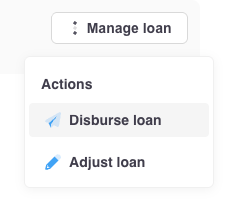
-
In the Disburse loan dialog, configure the disbursement details.
Note: You can't select blocked or canceled accounts. -
Select Next.
- If you selected External, the disbursement details are logged and an entry is added to the Disbursement tab.
- If you selected Internal, the funds are paid out to your selected internal account and an entry is added to the Disbursement tab.
Adjust a loan
Make adjustments to your customers' loan repayment details.
You can make adjustments to:
- Correct repayment calculation errors
- Respond to borrower requests, such as changing payment terms
- Restructure payments to reflect updated loan conditions
When you make an adjustment, your changes update the repayment schedule and affect the overall loan balance.
Adjustment criteriaTo make an adjustment, the loan status must be Active and the repayment installment status must not be Paid or Canceled.
To make an adjustment, do the following:
-
Select a loan.
-
Select Manage loan > Adjust loan.
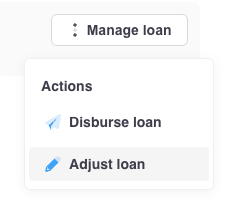
Alternatively, on the Repayment schedule tab, select the adjust icon for the installment you want to adjust.
-
In the Adjust loan dialog, configure the loan adjustment.
-
Select Next.
The installment and overall loan repayment details are adjusted.
Updated 2 months ago