
Kafka integration
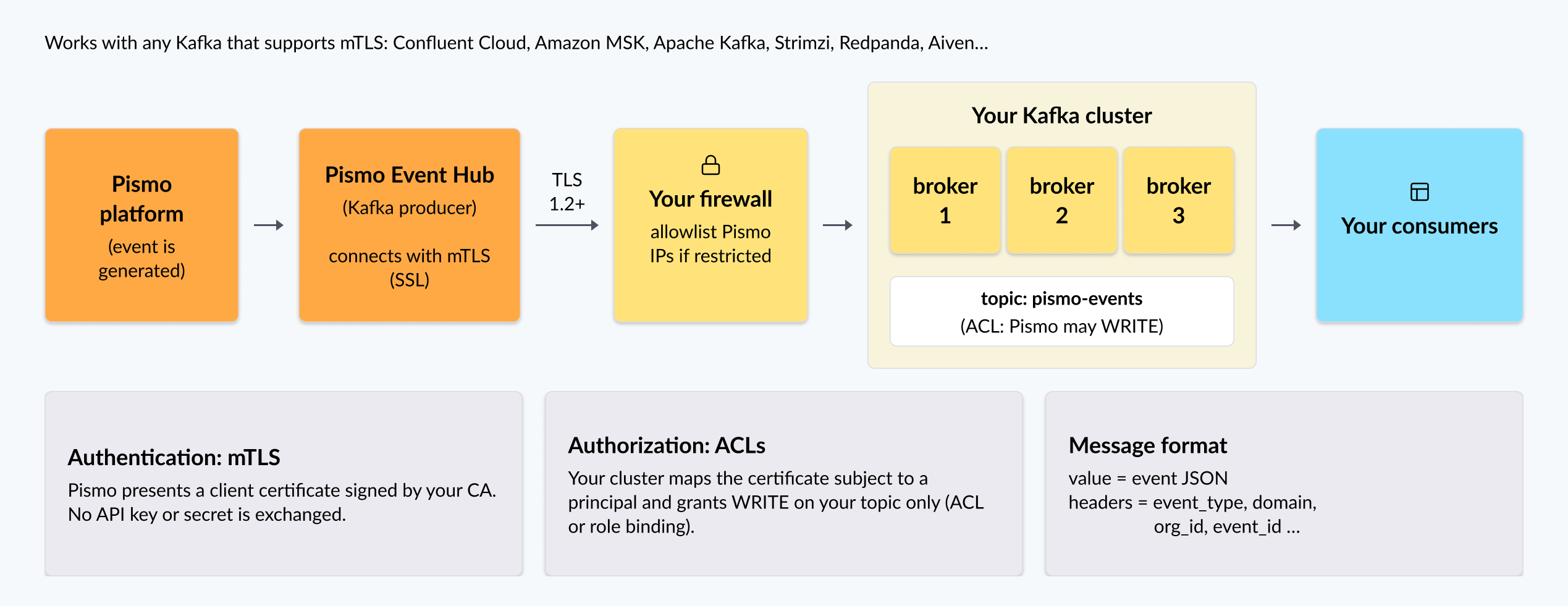
Use this guide to receive Pismo real-time events in a topic of your Kafka cluster. Pismo connects as a Kafka producer, authenticated with mTLS. It presents a client certificate signed by your certificate authority (CA), and your access control lists (ACLs) allow it to write only to your topic.
Works with any Kafka platform that supports mTLS client authentication, such as Confluent Cloud, Amazon MSK and self-managed Apache Kafka. No password, API key or private key is exchanged during the setup.
Kafka integration: event delivery architecture
Kafka with mTLS: setup steps
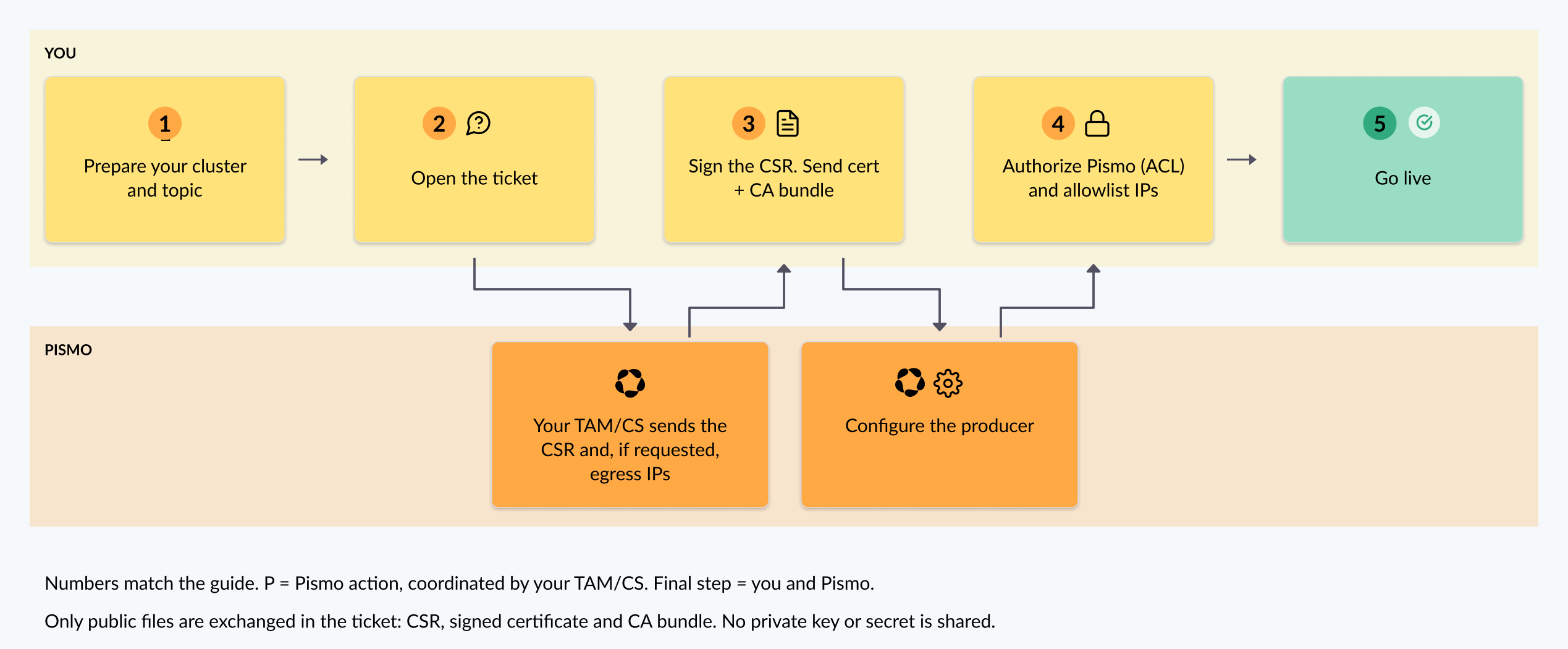
Each of these steps is explained in the remainder of this guide.
Before you begin
Before you begin HTTP webhook integration, ensure you have the following:
- Your Org ID and target environment (sandbox or production)
- A Kafka cluster with an mTLS listener reachable from the Internet: bootstrap servers and every advertised broker, TLS 1.2 or higher
- A private CA that your cluster trusts, to sign Pismo's client certificate (public CAs cannot be used)
- OpenSSL 1.1.1 or later (macOS:
brew install openssl@3)
Step 1—Prepare your cluster
- Create the topic (for example,
pismo-events). Pismo does not create topics. -
Enable mTLS so that your cluster trusts the CA that will sign Pismo's certificate.
Platform What to do Confluent Cloud (Dedicated, Enterprise or Freight) Upload your CA chain in Accounts & access → Workload identities → Add provider → Certificate authority. Guide Amazon MSK (provisioned) Enable TLS client authentication with your AWS Private CA and turn on public access (port 9194). Guide Self-managed Apache Kafka Add an SSL listener with ssl.client.auth=required, your CA chain in its truststore, and ACL authorization enabled. Guide
Step 2—Open a Service Desk ticket
Submit a Service Desk ticket and include all required information in the initial request to help avoid delays.
- Go to: https://pismolabs.atlassian.net/servicedesk/customer/portal/10 and select Settings.
- For Category, select Data.
- For Sub-Category, select Event Integration.
-
Copy the template below into the Description field. Replace the examples with your information and select Submit.
INTEGRATION REQUEST — Kafka with mTLS (Real-Time Events)
========================================================

Org ID:                    TN-xxxxxxxx-xxxx-xxxx-xxxx-xxxxxxxxxxxx
Environment:               Sandbox / Production
Requester Name:            Your Name
Contact Email:             [email protected]

Kafka platform:            Confluent Cloud / Amazon MSK / Apache Kafka / Other: ______
Bootstrap servers (mTLS):  broker-1.yourdomain.com:9094,broker-2.yourdomain.com:9094
Topic name:                pismo-events

CSR key algorithm:         RSA 2048 / RSA 4096 / ECDSA P-256
CSR subject:               CN=pismo-events-prod, OU=Data Platform, O=Pismo
Existing mTLS with Pismo:  No / Yes (ticket reference: ______)
Send Pismo egress IPs:     Yes / No
- Bootstrap servers—The mTLS listener (Amazon MSK:
BootstrapBrokerStringPublicTls). - CSR key algorithm and subject—Your security team's requirements for the client certificate Pismo will use.
- Send Pismo egress IPs—Answer Yes to receive the IP addresses to allowlist in your firewall.
Your Technical Account Manager (TAM) or Customer Success (CS) contact coordinates the certificate process with you. Your TAM/CS sends you the CSR (pismo-client.csr) and, if requested, the Pismo egress IPs.
- For more information about mTLS for Pismo webhooks, refer to Verifying webhook requests - Request mTLS support.
- After Pismo completes the initial configuration, you have 24 hours to adjust permissions/access on your side. If Pismo cannot deliver events within this window, the integration will be paused and you will need to open a new ticket to resume.
- Do you need Pismo-specific details? Contact your Technical Account Manager (TAM) or the Implementation Engineer assigned to your project.
Step 3—Sign the CSR and return the certificates
You must sign the CSR and return the certificates to your TAM/CS.
-
Sign the CSR with the CA your cluster trusts. The certificate needs the clientAuth usage.
openssl x509 -req -in pismo-client.csr -CA your-ca.crt -CAkey your-ca.key -CAcreateserial \
  -out pismo-client.crt -days 365 -sha256 \
  -extfile <(printf "basicConstraints=CA:FALSE\nkeyUsage=critical,digitalSignature,keyEncipherment\nextendedKeyUsage=clientAuth")
If
your-ca.crtis an intermediate CA, append it:cat your-ca.crt >> pismo-client.crt. With AWS Private CA or another CA tool, issue a certificate withextendedKeyUsage = clientAuth. -
Create the CA bundle with the root CA that issued your broker certificates. Pismo uses this file to trust your brokers.
awk 1 isrgrootx1.pem isrg-root-x2.pem > ca-bundle.pem # example for Confluent CloudPlatform Root CA to include Confluent Cloud ISRG Root X1 and ISRG Root X2 Amazon MSK Amazon Root CA 1 Self-managed The root CA of your broker certificates - Send
pismo-client.crtandca-bundle.pemto your TAM/CS, as instructed in your ticket.
Never send.keyfiles.
Step 4—Authorize Pismo
Allow Pismo's certificate to WRITE and DESCRIBE on your topic, and nothing else.
Get the certificate subject with:
openssl x509 -in pismo-client.crt -noout -subject -nameopt RFC2253
Apache Kafka and Amazon MSK
Use User: followed by the subject:
kafka-acls.sh --bootstrap-server <your-bootstrap> --command-config admin.properties \
  --add --allow-principal "User:CN=pismo-events-prod,OU=Data Platform,O=Pismo" \
  --operation Write --operation Describe --topic pismo-events
Confluent Cloud
Create a certificate identity pool for Pismo's certificate and grant it DeveloperWrite on the topic:
confluent iam certificate-pool create pismo-data-platform --provider <ca-id> \
  --external-identifier "CN" --filter 'CN == "pismo-events-prod"'

confluent iam rbac role-binding create --principal User:<pool-id> --role DeveloperWrite \
  --environment <env-id> --cloud-cluster <cluster-id> --kafka-cluster <cluster-id> \
  --resource Topic:pismo-events
If you restrict inbound traffic, also allowlist the Pismo egress IPs on the mTLS port.
Step 5—Go Live
These are the final steps to go Live.
- Run the diagnostic script (see Validate Integration) and paste the result in the ticket.
Pismo enables delivery and confirms in the ticket. - Confirm in the ticket that the first event arrived in your topic.
Each message has the event JSON as value, the event cid as key, and event metadata (event_id, event_type, domain, org_id, schema_version, cid, timestamp) as headers. Use event_id to recognize repeated deliveries.
Retry and retention policyTo ensure ecosystem stability, the platform applies retry limits. Events that exceed the retry threshold are moved to controlled retention and can be redelivered upon request, as long as they are within the 24-hour retention window.
Troubleshooting
| Symptom | Solution |
|---|---|
| Connection timeout | Allowlist the Pismo egress IPs and make sure every advertised broker hostname is reachable. |
| Pismo reports certificate signed by unknown authority | Add the root CA of your broker certificates to ca-bundle.pem and send it again. |
| Pismo reports certificate required or SSL handshake failed | Make your cluster trust the CA that signed Pismo's certificate. |
| Pismo reports Unknown Topic Or Partition or Topic authorization failed | Create the topic and grant WRITE and DESCRIBE to the exact subject from Step 4. |
Validate integration
Download pismo-kafka-diagnostic.sh, replace the values at the top with your own, and run it from a network that can reach your brokers:
#!/usr/bin/env bash
# Pismo Data Platform — Kafka (mTLS) diagnostics
# Requires OpenSSL 1.1.1+ (macOS: brew install openssl@3). Optional: kcat for check 4.

BOOTSTRAP_SERVERS="broker-1.yourdomain.com:9094,broker-2.yourdomain.com:9094"   # ← replace
TOPIC="pismo-events"                                        # ← replace
CA_BUNDLE="./ca-bundle.pem"                                 # file you send to Pismo
PISMO_CLIENT_CERT="./pismo-client.crt"                      # certificate you signed for Pismo
CLIENT_CA_CHAIN="./your-client-ca-chain.pem"                # CA chain your cluster trusts
TEST_CLIENT_CERT=""                                         # optional: test certificate from the same CA,
TEST_CLIENT_KEY=""                                          # with the same permissions as Pismo

OPENSSL=openssl
openssl version | grep -q LibreSSL && for c in /opt/homebrew/opt/openssl@3/bin/openssl /usr/local/opt/openssl@3/bin/openssl; do [ -x "$c" ] && OPENSSL="$c"; done
tmo() { if command -v timeout >/dev/null; then timeout "$@"; else perl -e 'alarm shift; exec @ARGV' "$@"; fi; }
ok() { echo "✅ $1"; P=$((P+1)); }
ko() { echo "❌ $1"; echo "   → $2"; F=$((F+1)); }
P=0; F=0

# 1-2. Each bootstrap server: certificate trusted by the CA bundle, and client certificate required
for BS in $(echo "$BOOTSTRAP_SERVERS" | tr ',' ' '); do
    H=${BS%:*}
    OUT=$(echo | tmo 20 "$OPENSSL" s_client -connect "$BS" -servername "$H" -verify_hostname "$H" -CAfile "$CA_BUNDLE" 2>&1)
    if echo "$OUT" | grep -q "BEGIN CERTIFICATE" && echo "$OUT" | grep -q "Verify return code: 0 (ok)" && echo "$OUT" | grep -Eq "TLSv1\.[23]"; then
        ok "$BS: broker certificate trusted by $CA_BUNDLE"
    else
        ko "$BS: unreachable, or broker certificate not trusted by $CA_BUNDLE" "Check DNS/firewall, TLS 1.2+, and the root CA of your broker certificates in $CA_BUNDLE"
    fi
    if echo "$OUT" | grep -q -e "Acceptable client certificate CA names" -e "Requested Signature Algorithms"; then
        ok "$BS: client certificate requested (mTLS listener)"
    else
        ko "$BS: no client certificate requested" "Use the mTLS listener (ssl.client.auth=required)"
    fi
done

# 3. Certificate you signed for Pismo
if "$OPENSSL" verify -CAfile "$CLIENT_CA_CHAIN" -untrusted "$PISMO_CLIENT_CERT" -purpose sslclient "$PISMO_CLIENT_CERT" >/dev/null 2>&1; then
    ok "Pismo certificate valid. Kafka principal: User:$("$OPENSSL" x509 -in "$PISMO_CLIENT_CERT" -noout -subject -nameopt RFC2253 | sed 's/^subject=//')"
else
    ko "Pismo certificate missing, not signed by $CLIENT_CA_CHAIN, or without clientAuth" "Sign the CSR as in Step 3"
fi

# 4. Topic visible and writable with the test certificate (optional, writes one test message)
if [ -n "$TEST_CLIENT_CERT" ] && command -v kcat >/dev/null; then
    KC=(-b "$BOOTSTRAP_SERVERS" -X security.protocol=ssl -X "ssl.ca.location=$CA_BUNDLE" -X "ssl.certificate.location=$TEST_CLIENT_CERT" -X "ssl.key.location=$TEST_CLIENT_KEY")
    MSG=$(mktemp); printf '{"pismo_diagnostic":true}' > "$MSG"
    if tmo 30 kcat -P "${KC[@]}" -t "$TOPIC" -k pismo-diagnostic -X message.timeout.ms=20000 "$MSG" >/dev/null 2>&1; then
        ok "Test message written to $TOPIC (key: pismo-diagnostic)"
    else
        ko "Could not write to $TOPIC with the test certificate" "Check the topic exists and the principal has WRITE and DESCRIBE (Step 4)"
    fi
    rm -f "$MSG"
fi

# 5. No private key in the files for Pismo
if grep -l "PRIVATE KEY" "$CA_BUNDLE" "$PISMO_CLIENT_CERT" 2>/dev/null; then
    ko "Private key found in the file(s) above" "Attach certificates only"
else
    ok "Files for Pismo contain certificates only"
fi

echo; echo "Result: $P passed, $F failed. Paste this output in your ticket."
The script checks your brokers and the files you send to Pismo. Check 4 is optional: it uses kcat and a test certificate from the same CA, with the same permissions as Pismo, and writes one test message to your topic.
Paste the output in your ticket.
Updated 12 minutes ago